How I Got My Paper-Based Logs into DXtreme Monitor Log 15 Initially
When I first got what was then called DXtreme Reception Log, I had about 300 log entries in my
paper logbook and around 150 QSL cards in my collection. I really
wanted all of my data in the Reception Log database and I certainly
wanted one-click access to my QSL images.
Note: For later versions, I used the Update Utility to update my database —
all the way up to Monitor Log 15. More on this later.
What I decided to do was to take some time after work and on
weekends to gradually get my data and QSLs into the Reception Log software.
I started with my QSL cards, entering each one as a log
entry before scanning it in.
When I was finished with my cards, I added a log
entry for each unverified record.
What a trip down memory lane! It was actually fun to look at each
QSL card and read each log entry as I processed them. And it's nice to know
that I can now use the power of my PC to quickly
recall and analyze my monitoring records and view my QSLs!
I had all of my logs and QSL cards entered within a few weeks.
Although, I admit I got excited toward the end and spent most of
the final weekend finishing the project!
Note: With the release of optional DXtreme Interchange
you can digitize your paper logbooks (or other non-ADIF sources) quicker than
ever before using a combination of essential data entry; dictation, type,
and paste; and active-importation. Read the
DXtreme
Interchange Data Sheet for more information.
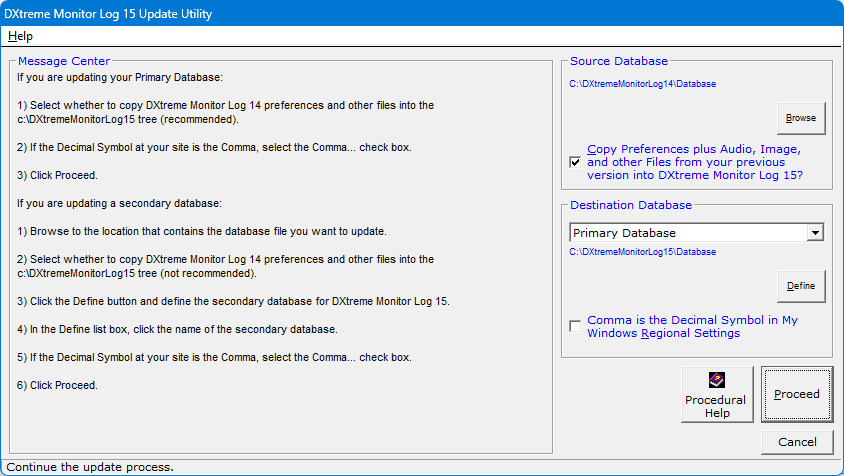
How You Can Update to DXtreme Monitor Log 15
If you're a registered user of DXtreme Monitor Log 14, DXtreme Monitor Log 12,
DXtreme Monitor Log 11, DXtreme Reception Log X, or
DXtreme Reception Log — Advanced Edition V6.0, V7.0, V8.0, or V9.0, you can use the
DXtreme Monitor Log 15 Update Utility to move to
DXtreme Monitor Log 15.
How You Can Get Logs From Other Sources Into Monitor Log 15
The ADIF Import Facility lets you import ADIF-formatted log entries into your
current database. ADIF stands for Amateur Data Interchange Format, a specification
that defines the rules for exchanging data between ham radio applications. Even though there's
no equivalent for exchanging non-ham data, Monitor Log 15 lets you use ADIF to
import log entries resulting from all monitoring activities — both ham and non-ham.
For a desired station class, you begin by producing an ADIF file for import,
either manually in a text editor or by exporting an ADIF log from another application, such as
FLdigi, WSJT-X, etc. You import log entries one station class at a time.
Here's a sample record in ADIF:
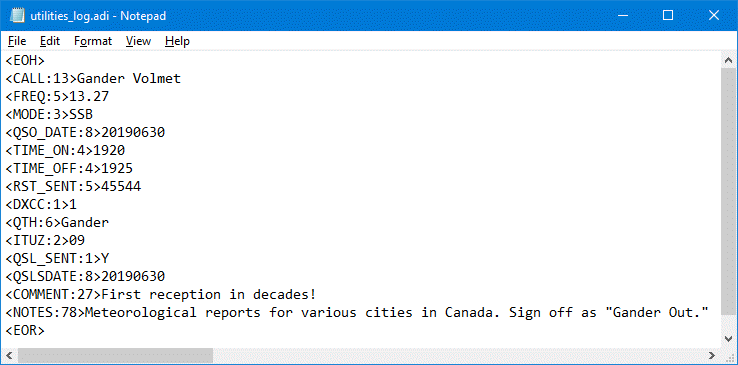
The Import Log From ADIF facility recognizes the following ADIF tags
(* — denotes required tags):
- <CALL>*
- <COMMENT> (for the QSO With field when
importing Ham-class log entries; otherwise, for the Comments field)
- <CQZ> (when CQ Zone tracking is enabled in Preferences)
- <DXCC>*
- <FREQ>*
- <ITUZ> (when ITU Zone tracking is enabled in Preferences)
- <MODE>*
- <NOTES> (for the QSO With field when
importing Ham-class log entries and the <COMMENT> tag is not used; otherwise, for
the Details field in Content Tab 1 [the Start, End,
and Quality fields are populated automatically])
- <PROP_MODE>
- <QSL_RCVD>
- <QSL_SENT>
- <QSLRDATE>
- <QSLSDATE>
- <QSO_DATE>*
- <QTH> (for the Tx Site field)
- <RST_SENT> (for the Report field)
- <STATE>
- <TIME_OFF>*
- <TIME_ON>*
Importing
On the File menu of the Import Log From ADIF
facility, click Open and select the ADIF file to import.
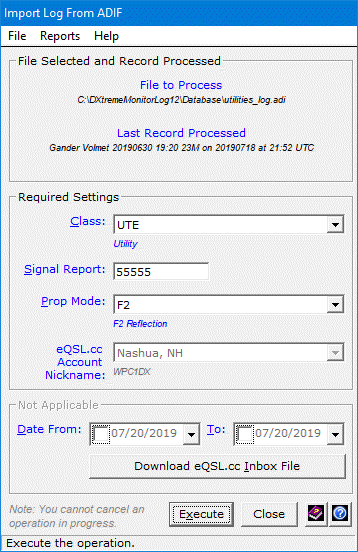
In the Class list box, click the station class of the
log entries to be imported. You import log entries one station class at a time.
In the Signal Report box, type
the default signal report value you want the facility to write into each
imported log record (unless the signal report is included in the source
ADIF file).
In the Prop Mode list box, click
the default propagation mode you want the facility to write into each
imported log record (unless the propagation mode is included in the source
ADIF file).
For Ham-class log entries, in the eQSL.cc Account
Nickname list box, click the eQSL.cc account for which a QSL request
workfile will be created.
Click Execute to begin the import operation.
When the facility encounters information in the ADIF file that is
incompatible with the module information in the Monitor Log database, it
prompts you to specify the appropriate information.
When the facility completes its work, the log entries are in your database. If
desired, view the Records Added During Import or Update on the Reports menu.
How You Can Protect and Preserve Your Monitoring Records
Let's face it ... paper fades and gets musty with age! Entering
your log entries and scanning your QSL cards and other documents into your computer
is one way to protect and preserve your QSL cards and monitoring records!
I had some 37-year-old QSL cards and other documents in my collection that were starting
to fade. I'm glad that Monitor Log's QSL Imaging and Improv Imaging features
let me capture them before they got worse. And I'm really glad that QSL Imaging
lets me capture my new QSLs right out of my Mailbox, Inbox, and eQSL.cc!
But even more importantly...
Say you experience a fire or some other unfortunate event that
destroys your monitoring equipment, records, and QSL cards. Sorry
to bring this up, but it does happen.
Your homeowners insurance will likely replace your monitoring
equipment. But how do you replace your monitoring records and QSL
cards?
If you use Monitor Log 15, you can copy your data, QSL image files,
Improv image files, and audio files to the Cloud or to CDs, DVDs, USB drives, or some other
removable media you can place at another location, such as a relative's house, work, or safe
deposit box. That way, if something bad happens, you'll be able to retrieve a copy of your
records and files.
Buh-bye Everybody!
See you on the rail trail!
73, 88, and, most of all, good DX and health to you all!

Your DXtreme Monitor Log 15 Happy User
|